


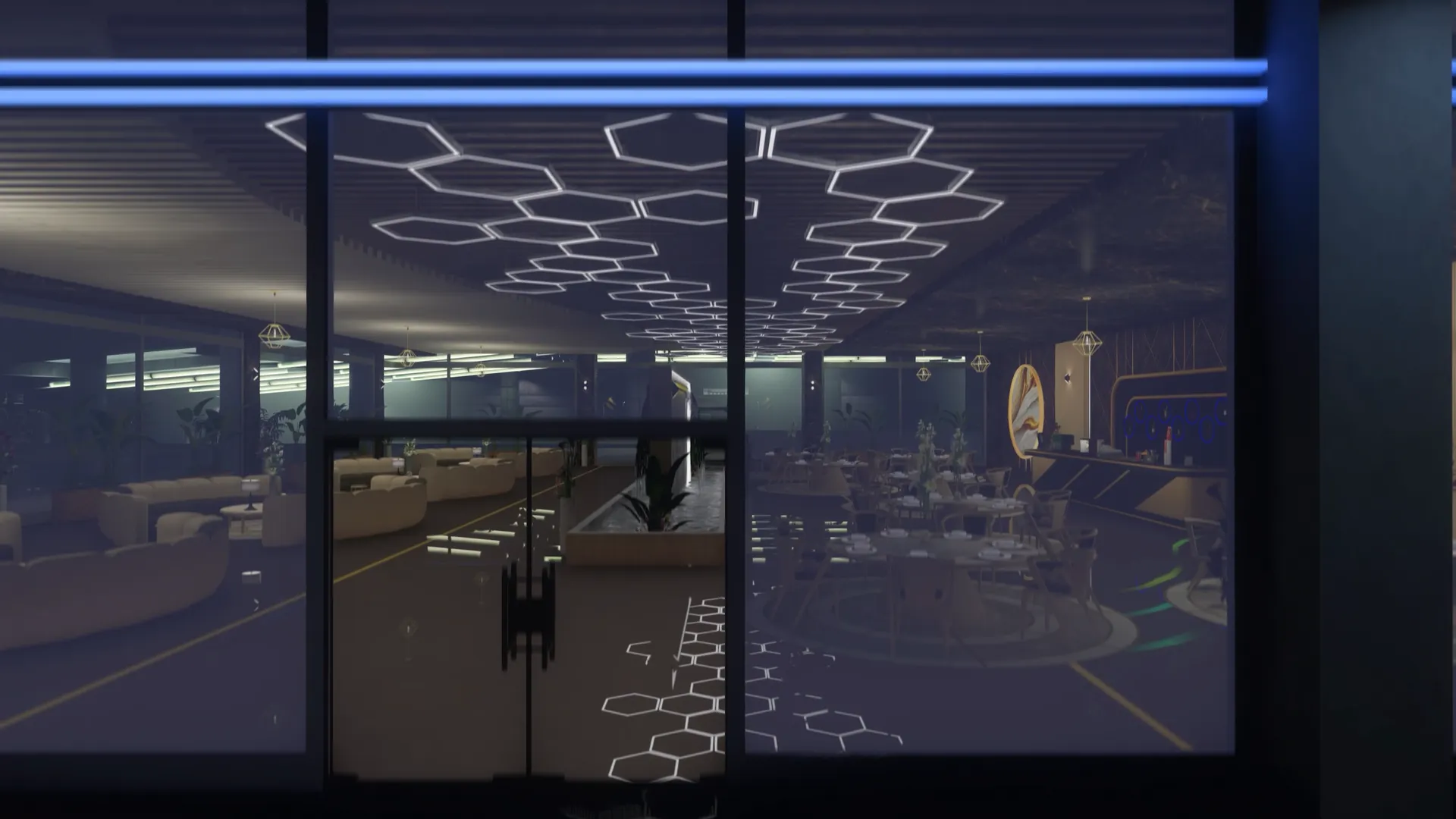

Before You Begin#
Before installing Downtown Mechanic, make sure your server meets the requirements. There is nothing to install alongside it: the map brings its own models, its own collisions and a small script that switches its layers.
Requirement | Status | Notes |
|---|---|---|
Game build 3570+ | Recommended | Two decorative props come from the Money Fronts update. On an older build the map loads normally and those two pieces are simply absent. |
Framework | Not needed | ESX, QBCore, Qbox, ox_core, ND_Core or standalone — nothing is read from it. |
Database | Not needed | The active layer is saved to a file inside the resource. No SQL to import. |
OneSync | Not needed | Works with OneSync on or off. |
| Optional | The default chat resource. Only used to show the usage hint when a player types the command wrong. |
To run the build that shows every prop, set it in server.cfg. Every player downloads that build's game files the next time they connect, so plan it outside peak hours:
sv_enforceGameBuild 3570Downloading Downtown Mechanic#
After purchasing Downtown Mechanic, the resource is automatically linked to your CFX Portal account.
Sign in to the CFX Portal using the same account used during checkout, open Granted Assets, and download Downtown Mechanic.
After extracting the download, you should have the following folder:
qs_downtown_mechanic/
├── fxmanifest.lua
├── client.lua        -- loads and unloads the event layers on each player
├── server.lua        -- the /mechanicmap command and the saved layer
├── map_state.json    -- the layer that is active right now
└── stream/           -- the MLO, its props, collisions and distant models
Leave everything in
stream/exactly as it ships. The map files point at each other by name, so a renamed or deleted file shows up in game as an invisible prop, a missing wall or a hole in the floor.
Installing the Resource#
Move the qs_downtown_mechanic folder into your server's resources directory. It can live anywhere inside it, including a category folder:
resources/
└── [maps]/
    └── qs_downtown_mechanic/
Then open your server.cfg and start it:
ensure qs_downtown_mechanicThe position in the file does not matter — the map depends on nothing and nothing depends on it. The one exception is another resource that streams the same building files: whichever starts last wins, which is why it should be removed rather than reordered.
For the first install, restart the whole server instead of starting the resource on a live one. New streamed models and replaced collisions are picked up cleanly on a fresh connection; players standing near the building while it swaps can see half-loaded geometry until they reconnect.
Choosing the Starting Layer#
There is no config file. The one setting the map has is which layer is showing, and it lives in map_state.json:
{
    "activeMap": 0
}
Value | What players see |
|---|---|
| The workshop on a normal working day. |
| The workshop set up for a meet: gazebo, barbecue, tables and chairs. |
| The meet, with food and drinks laid out on the tables. |
Check the value before the first start and set the one you want your players to find. From then on you change it in game with /mechanicmap and the file is rewritten for you — see Usage. If the file is missing, the first start creates it with 0.
Editing the file on a running server does nothing. The value is read once, when the resource starts; after that the server keeps it in memory and overwrites the file the next time the command is used.
Granting the Command#
/mechanicmap is a restricted command: a player needs the ACE permission command.mechanicmap to use it from chat. The server console and txAdmin's live console can always run it.
The usual route. Everyone in group.admin — as set by your add_principal lines — gets the command:
add_ace group.admin command.mechanicmap allowFor an event manager who is not an admin, grant it to their identifier alone:
add_ace identifier.license:xxxxxxxxxxxxxxxxxxxxxxxxxxxxxxxxxxxxxxxx command.mechanicmap allowOnly needed when one of your own resources switches the layer with ExecuteCommand — a scheduler, an event manager. Replace my_events with that resource's folder name:
add_ace resource.my_events command.mechanicmap allowLines added to server.cfg apply on the next restart; typed into the server console, they apply at once.
Verifying the Installation#
After completing the installation, restart your server and read the console. The map announces the layer it restored:
[MECHANIC MAP] State loaded: 0If map_state.json was missing, it says so instead and creates it:
[MECHANIC MAP] File not found, creating default state.Then join your server and work through the first loop:
Visit the workshop
Go to
vector3(-74.6, -1332.2, 29.8), inside the workshop. The three lift bays, the roller doors, the tyre corner and the office should all be there, with solid floors and walls.Check your client
Open the F8 console. Half a second after the map started on your side it asked the server for the layer, and printed
[MECHANIC MAP] Active map set to: 0— or whichever layer the server restored.Switch a layer
Type
/mechanicmap 2in chat. The gazebo, the barbecue, the tables and the food appear for everyone at once./mechanicmap 0clears them again.
Nothing needs a restart from here on. The layer changes live, reaches every player, and survives restarts on its own.